Split Keyboards and Why They Are Cool
2026-03-28 Tags: technology
I have a columnar programmable split keyboard with thumb clusters and swappable mechanical keyswitches and keycaps that I love:
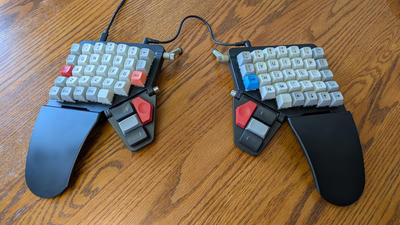
Split is great:
- Placing them shoulder width apart is much more ergonomic for your shoulders, letting you sit up straight with your shoulders back.
- Angling them separately allows a natural straight wrist position, especially for people with big hands like me.
- Tenting them (angling them up towards the center) allows your wristbones to rotate less.
- You can put a coffee mug or a mouse in between them.
Columnar is great:
- Instead of staggering the keys (a relic of typewriters, which needed room for the levers beneath the keys), placing them in columns allows your fingers to travel straight up and down between rows.
- You can also lower or raise each column based on the length of the fingers (mostly lowering the pinky key, mine could go even further).
Programmable is great:
- You can add layers (basically like extra shift keys that change what each key does) to place keys closer to the home row, avoiding finger travel and contorting your hands as much.
- If you want to, you can swap out QWERTY for a more efficient layout, or create custom layers and macros for your programs (think shortcuts in editing software).
- You can also have combinations of keys trigger custom behavior, though I mostly avoid this.
Thumb clusters are great:
- Your thumbs are some of your best fingers, why should they take turns only pressing a giant space bar?
Swappable keyswitches and keycaps are great:
- Mechanical keyswitches just feel really satisfying and provide physical feedback so you know when the switch activated.
- You can choose from quiet smoother ones to tactile clicky ones to loud thocky ones.
- I started with Cherry MX silent red keyswitches and switched to tactile blues. Semira was very understanding with the noise.
- I started with flat keycaps that came with my keyboard, which allow moving them all around arbitrarily,
but switched to sculpted keycaps that lovingly cradle my fingertips.
- Since each row in sculpted keycaps have a different angle, they only work if you keep each letter in the default row supported by the seller, or by buying blank keycaps or adding stickers.
Keyboard
I got a Moonlander ZSA based on a recommendation from a coworker and very good online reviews. It's been awesome.
It's definitely pricey relative to some of the competition, but a lot of alternatives are much more DIY focused and/or are have way fewer keys, which doesn't work with my desired layout. As they say, "Don't cheap out on anything between you and the ground!" I think that applies to keyboards when you spend 8 hours a day in the code mines. (I also bought a refurbished ergonomic office chair.)
I like the built-in tenting functionality, you can adjust and lock the thumb clusters and little legs with a hex key to choose the angle you want.
It comes with screw mounting points on the underside for extensions - I'd like to try 3d printing an even more tented base, so you're holding it like an accordion, or try mounting it to my office chair arms.
You can also type lying flat on your back for the ultimate in ergonomics/bed-rotting, if you can mount a monitor somewhere. I tried XR glasses for it (the Viture Pros, which work just like a monitor in your lenses) but they never quite stayed in focus with my bad eyesight, so I sold them to a coworker. I've seen people on youtube who just have a monitor on a swivel arm over their couch though.
It doesn't support bluetooth but that works fine for my setup.
My layout
My main goals were:
- Avoid breaking QWERTY muscle memory for alphanumerics, so I can easily jump back and forth to my macbook.
Similarly avoid breaking
vim's HJKL navigation, since I spend a lot of time in my code editor.- This meant no DVORAK or COLEMAK-DH - which I was fine with. I'm more concerned with ergonomics than raw typing speed.
- Avoid dual purpose keys, where tapping and holding do different things - each key should do one thing per layer.
- I played around with this functionality, but if a key can mean multiple things as part of a chord, the keyboard has to wait some period of time to check if you will press another key, and I couldn't find the right delay that felt snappy but wouldn't cause mistypes.
- Avoid having to use the number row, it's too far away - instead numbers and special characters (which are very common in programming) should all be on a new layer.
Other details:
- I replaced caps lock with escape, which you press a lot in vim. I do this on my macbook too.
- I have underscore on thumb cluster keys like my spacebar, since you use them so much in programming.
- I tried organizing my special characters layer to keep numbers in a consistent layout, just one row down, and the rest sorted vaguely to put the least common characters in the bottom pinky slots:
- I have the bottom innermost keys as layer 2 keys, so like
shiftI can hold one with the opposite hand to access symbols and numbers easily.
I could entirely get rid of my top (number) row now, but most smaller split keyboards also get rid of a lot of the bottom row modifier keys that I want, so the Moonlander is still the best fit I've found.
Keycaps
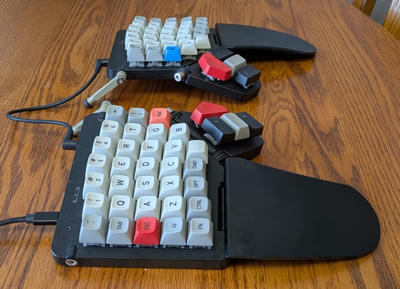
I really like the MT3 keycaps, and their "ortholinear" set, which had enough variations on
keys like esc to cover my layout. The little rounded scoop in each key helps your fingertips find exactly where to go. I got the "/dev/tty"
classic grays color scheme.
I especially like their single unit spacebar tiles that are convex instead of concave, for hitting with my thumbs for my layer keys. I wish I had rounded (and sloped) ones for the thumb cluster as well.
Anyways mechanical keyboards are a whole dangerous hobby you can spend way too much money on, so I'm kind thankful I found something I really like and have stuck with.